You can use this app on a laptop, tablet, or mobile device. You can also play notes using your mouse or touch. For the best experience, connect a digital piano or MIDI keyboard so the app can detect the notes you play and display them instantly on screen.
What you need
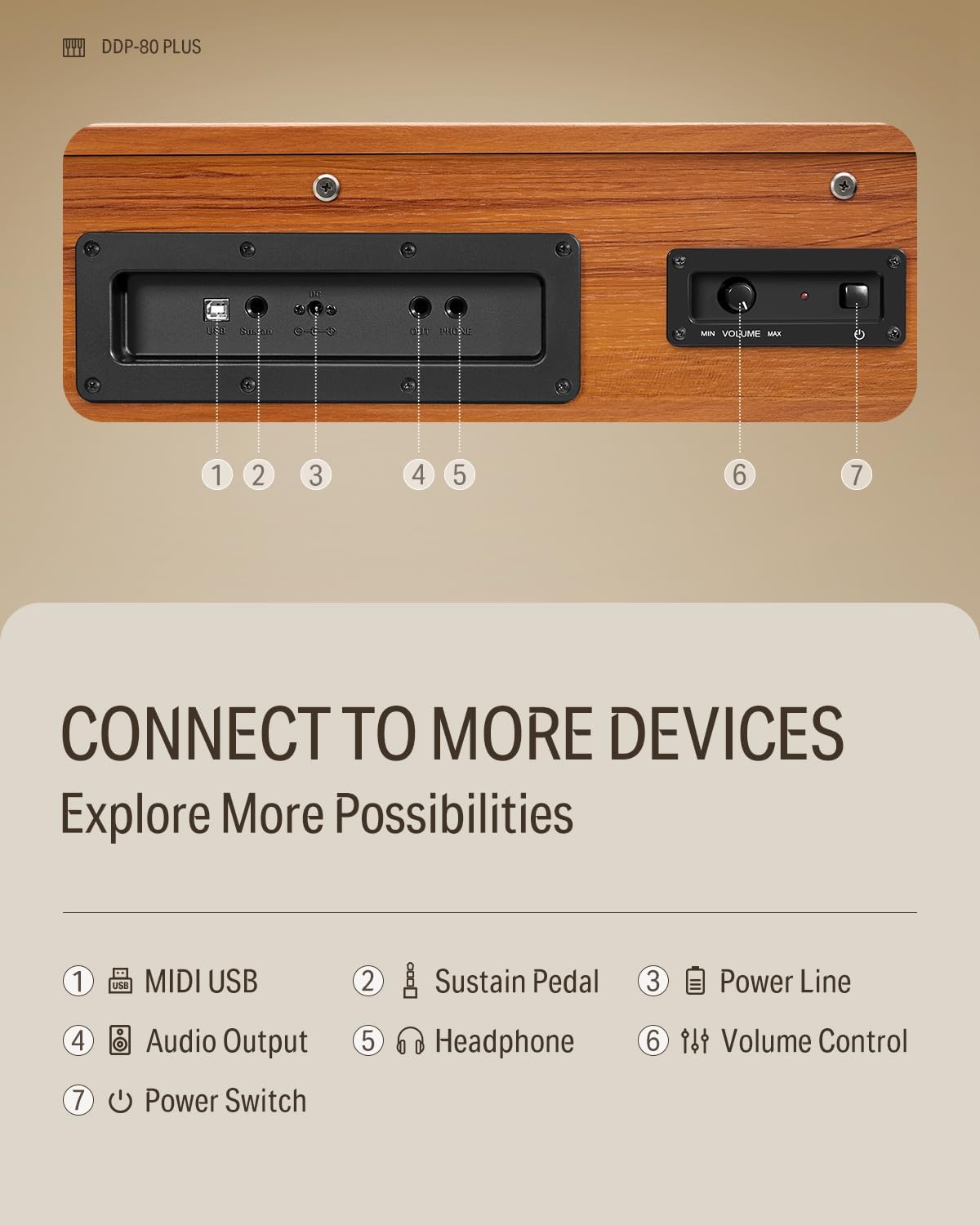
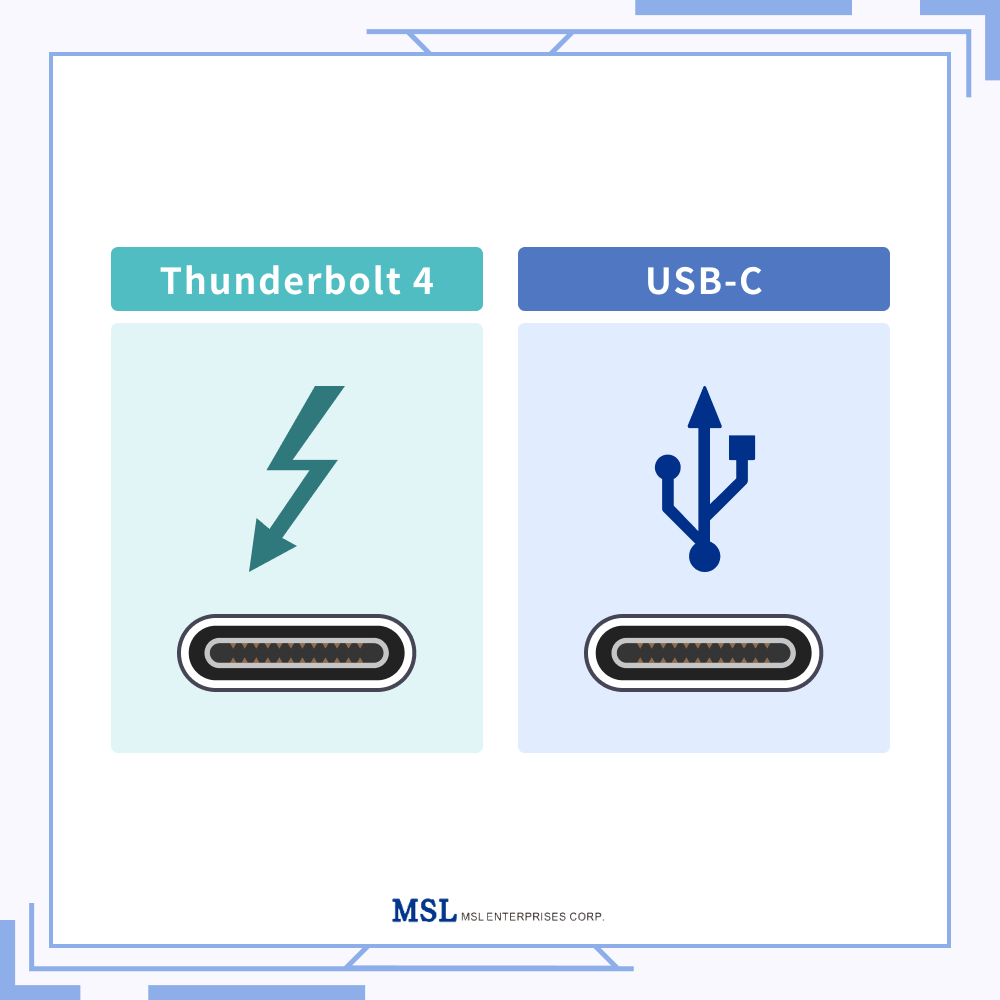
Most keyboards have a square-ish USB-B port (often labeled “USB to Host”, “USB”, or “MIDI USB”). Your laptop side may be USB-A (classic rectangle) or USB-C (small oval).
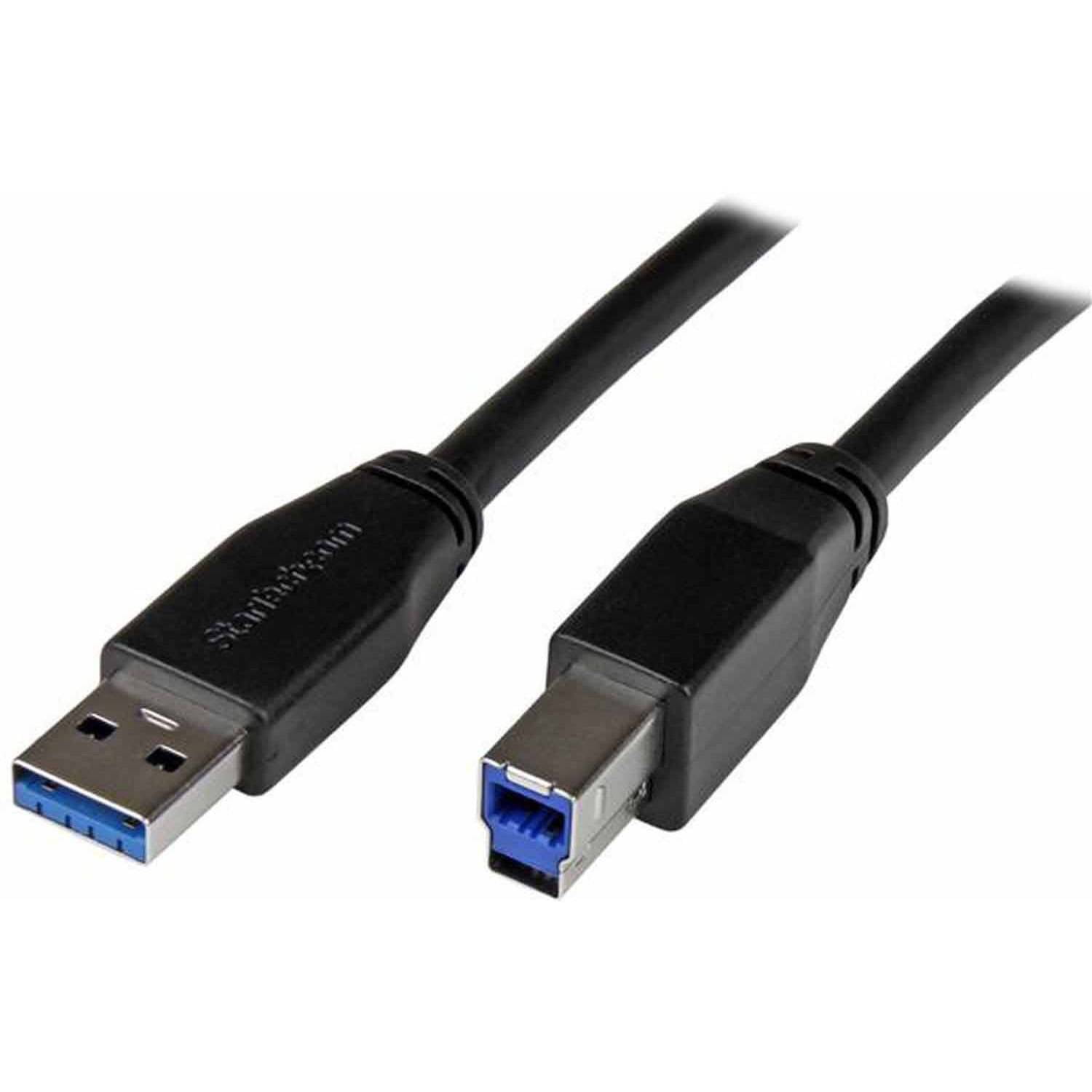
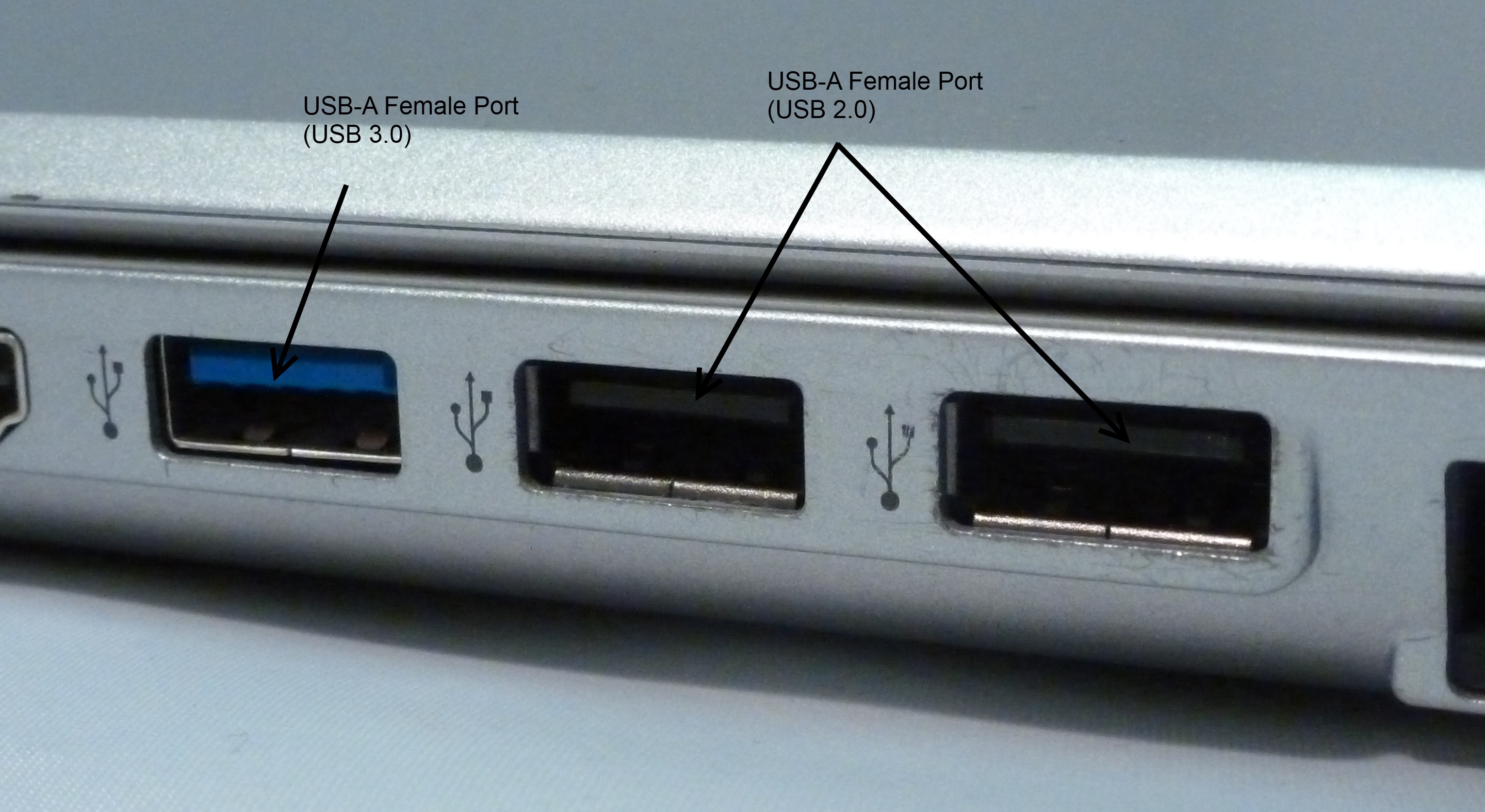
• If your laptop has USB-A: get USB-A → USB-B
• If your laptop has USB-C only: get USB-C → USB-B (or use a USB-C hub + USB-A → USB-B cable)
• If your keyboard has only round 5-pin MIDI ports (no USB): you’ll need a USB-MIDI interface (MIDI IN/OUT).
Step-by-step setup
Find the correct port on your keyboard
Turn the keyboard around and look for a port labeled USB, USB to Host, or MIDI USB. This is usually a USB-B port (square-ish, “printer style”).
Connect the cable (keyboard first, then laptop)
Plug the USB-B end into your keyboard, then plug the other end into your laptop (USB-A or USB-C, depending on your cable/adapter).
Power on the keyboard
Turn the keyboard on. Some models only “announce” themselves to the computer after they’re powered on, so if the app doesn’t detect it immediately, power-cycle the keyboard once.
Open the app and allow MIDI access (if prompted)
In some browsers/devices you may see a prompt asking to allow a MIDI device. Click Allow. Once connected, the app will detect your playing and show the notes on screen.
Play a few notes to confirm
Play single notes and then a chord. You should see the corresponding notes appear in the app immediately. If nothing shows up, use the troubleshooting tips below.
Drivers and common installation notes
- Windows: Usually installs the device automatically the first time you plug it in. If Windows shows an error, or your keyboard brand provides a dedicated “USB-MIDI driver,” install the driver from the manufacturer’s official support page, then unplug/replug the keyboard and try again.
- Mac: Typically no driver needed for USB-MIDI. Just plug in the keyboard and refresh/reopen the browser tab if needed.
- Chromebook: Many USB-MIDI keyboards work, but compatibility can vary by model and browser settings. If it’s not detected, try a different browser or a powered USB-C hub.
- Tablets / phones: You may need an OTG adapter (USB-C OTG or Lightning to USB adapter). Once connected, allow MIDI/USB access when prompted.
Troubleshooting (quick fixes)
Try a different USB port or cable
Bad cables are more common than you’d think. If you’re using a hub, try plugging directly into the laptop (or try another hub).
Unplug → close the browser tab → reconnect
Some browsers only detect MIDI devices when the page loads. Close the app tab, reconnect the keyboard, then reopen the page.
Check the keyboard’s USB mode (if available)
A few keyboards have a setting related to USB/MIDI. If your keyboard has a “USB Mode,” set it to MIDI or USB-MIDI.
Install the manufacturer driver (Windows, only if needed)
If your keyboard is not recognized or shows warnings in Windows, download and install the official driver for your exact model, restart, then reconnect.